Creating an All Patients List in SOE EXACT
Overview
Follow this guide to create an All Patients List in SOE EXACT. You only need to complete this process once. Afterwards, you can directly proceed to Downloading the All Patients List from SOE EXACT to subsequently upload into Dental Dash.
Instructions
Note:
If you already have an All Patients List that includes both inactive and active patients, you can skip these steps.
Directly proceed to Downloading the All Patients List from SOE EXACT.
Step 1. Sign into SOE EXACT
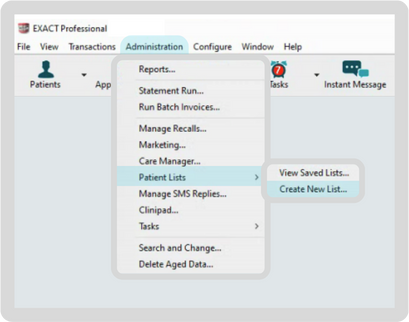
Step 2. Go to Administration > Patient Lists > Create New List....
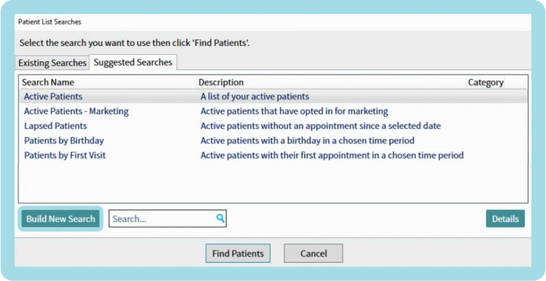
Step 3. Select Build New Search at the bottom left of the Patient List Searches popup.
Step 4. Set up the New Search with the following details:
| Option | Value |
|---|---|
| Search Name | Dental Dash All Patients |
| Description | All Patients List for Dental Dash. |
| Category | Leave blank or as needed |
| Match Conditions | Select Match any conditions |
Adding Conditions
For Active Patients:
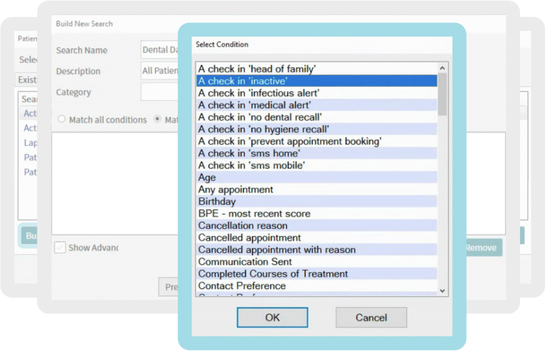
- Click Add, choose A check in 'inactive', and confirm with OK.
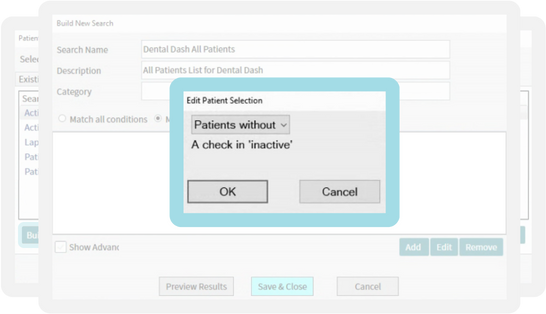
- In Edit Patient Selection, select Patients without a check in 'inactive' and click OK
For Inactive Patients:
- Click Add again, choose A check in 'inactive', and confirm with OK.
- This time, select Patients with a check in 'inactive' and click OK.

Your final setup should look like this.
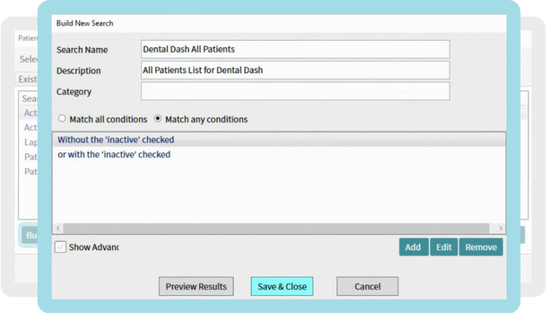
Save & Close once your search setup is complete.
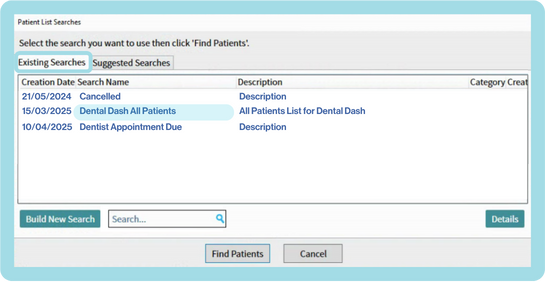
Step 5. Navigate to the Existing Searches tab, locate and double-click your Dental Dash All Patients list.
Step 6. In the Create Patient List window, enter:
| Option | Value |
|---|---|
| New List Name | Dental Dash All Patients |
| Prompt at appointment booking | Leave this unchecked |
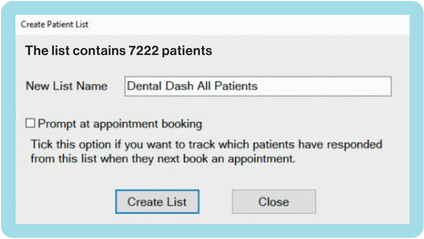
Click Create List to finalise.
You're now ready to download this list. Follow the guide at Downloading the All Patients List from SOE EXACT.